

Generating Automated Tests
Learn how to create AI-powered test cases using natural language descriptions
Overview
kiteto uses artificial intelligence to generate automated end-to-end tests from natural language descriptions. Simply describe what you want to test in plain language, and kiteto will create an executable Playwright test that performs the actions, validates the outcomes, and generates production-ready code.
How to Generate a Test
Step 1: Navigate to the Dashboard
After signing in, you'll see the test generation interface on your dashboard. Make sure you have selected the correct application from the app selector in the top left corner.
Step 2: Describe Your Test Case
Click into the "Test Case Description" text field and describe your test case as you would explain it to a colleague - in simple, clear language.
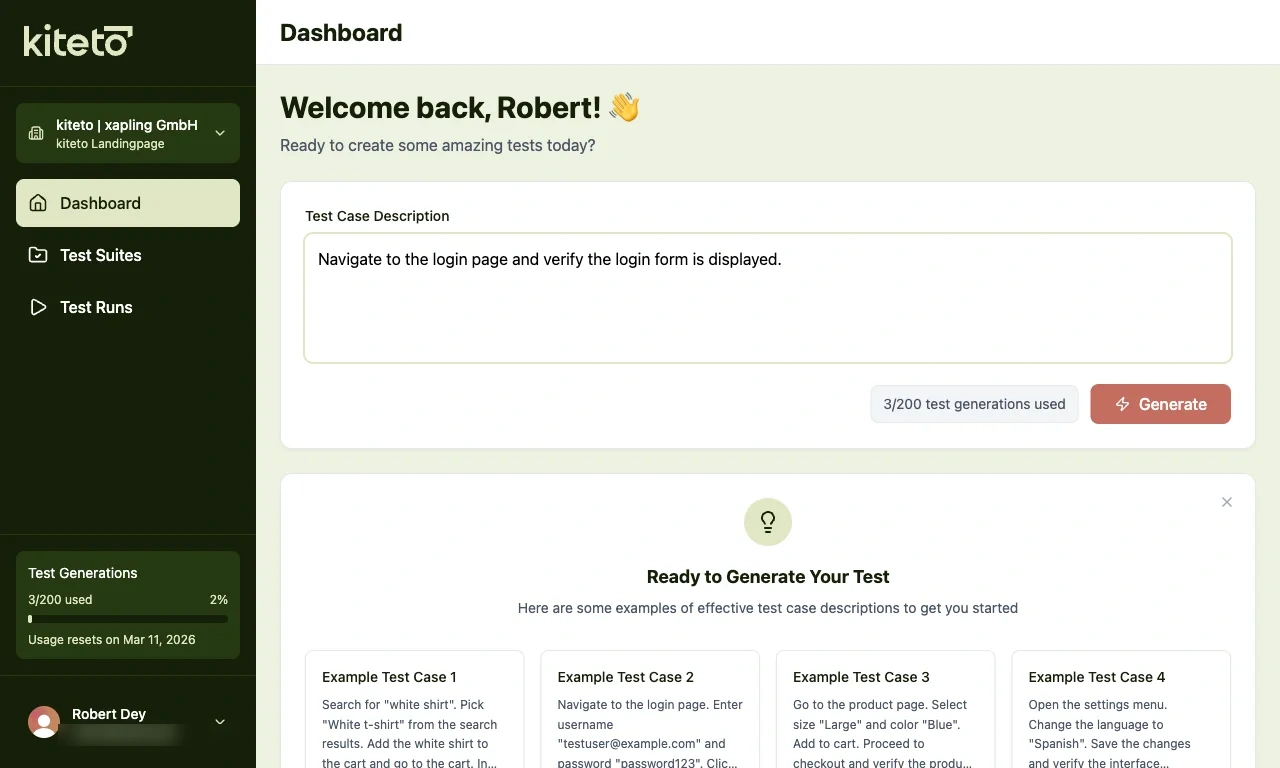
Example test description:
Navigate to the login page. Enter username "testuser@example.com" and password "password123".
Click the login button and verify the dashboard is displayed.
Note
The "Generate" button becomes active only after you have entered text in the description field.
Step 3: Click Generate
Click the "Generate" button to start the AI-powered test generation process. kiteto will:
- Analyze your description
- Navigate to your application
- Identify the necessary UI elements
- Perform the actions you described
- Capture screenshots at each step
- Generate Playwright test code
You can watch the generation process in real-time as kiteto executes each step.
Step 4: Run Your Test
Once generation is complete, you can integrate the generated Playwright test code into your test suite and run it locally. The generated test is production-ready and can be executed immediately.
For detailed instructions on how to download, integrate, and run your generated test, see the Running Tests guide.
Monitor Your Usage
Right next to the "Generate" button, you'll see your current usage, for example "3/200 test generations used". This quota indicates how many AI generations are still available in your current billing period. For more information about your quota, see the Usage Quota guide.
Writing Effective Test Descriptions
The quality of your test description directly impacts the quality of the generated test. Follow these guidelines for best results:
Be Specific and Sequential
Break down your test into clear, sequential steps:
Good:
1. Click the "Products" menu item
2. Select "Electronics" from the dropdown
3. Click on the first product in the list
4. Verify the product name is "Wireless Mouse"
Avoid:
Test the product browsing featureInclude Concrete Values
Specify exact values, text, and expected outcomes:
Good:
Enter "john.doe@example.com" in the email field
Enter "SecurePass123!" in the password field
Verify the welcome message shows "Hello, John"
Avoid:
Fill in the login form with credentials and check if login worksState Expected Outcomes
Always include verification steps to make your tests robust:
Good:
Click the "Add to Cart" button and verify the cart counter increases to "1"Avoid:
Click the "Add to Cart" buttonUse Clear UI Element References
Reference UI elements by their visible text, labels, or position:
Good:
Click the "Save Changes" button in the top right corner
Select "Premium" from the subscription plan options
Avoid:
Click the button
Select the premium option
Reviewing Generated Tests
After generation completes, review the results to ensure the test matches your expectations.
Each step in the generated test timeline includes action buttons that help you understand what happened:
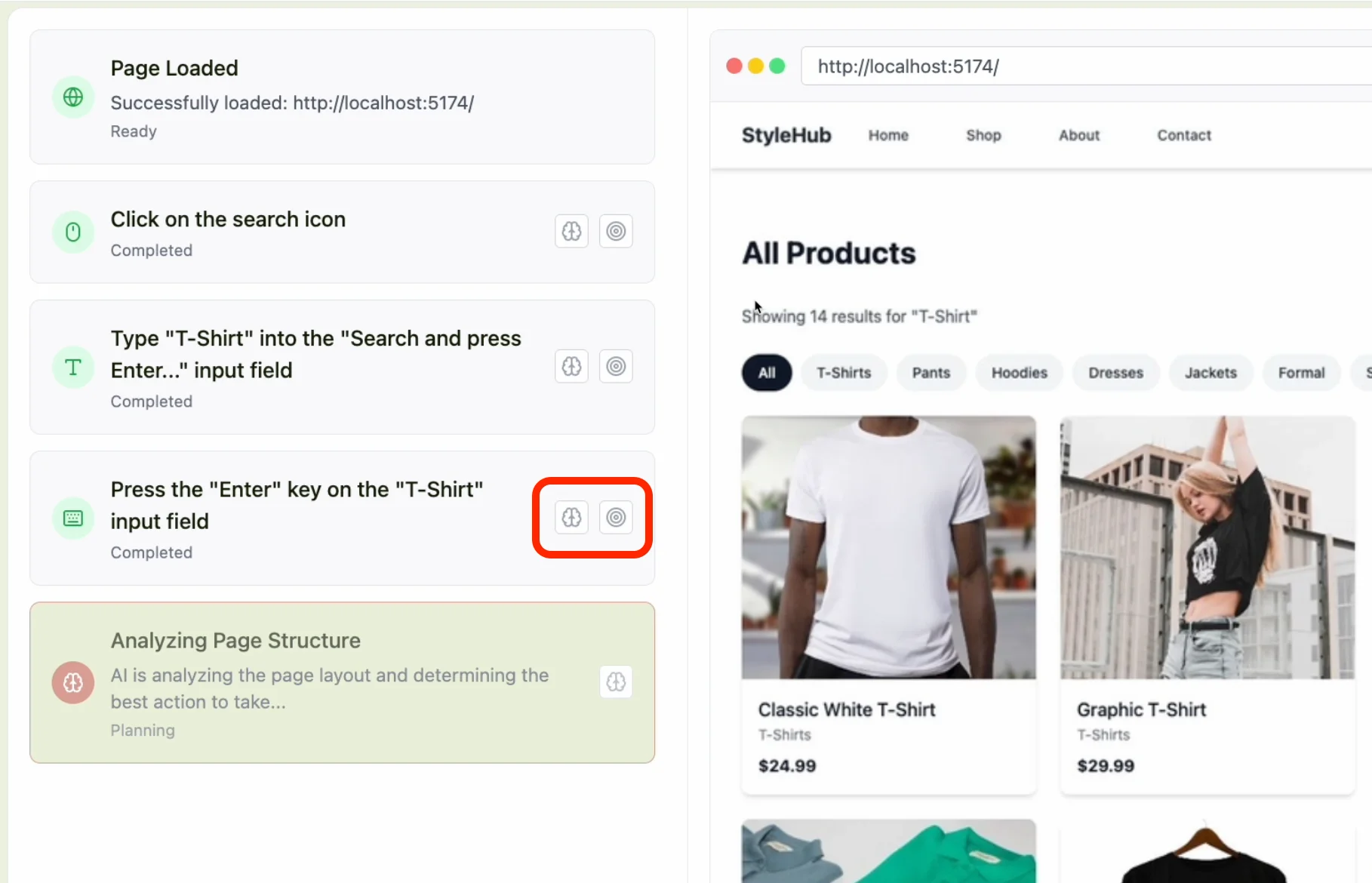
- Brain icon - View the AI's reasoning and decision-making process for this step
- Target icon - See the specific element that was targeted and interacted with
- Screenshot - Visual confirmation of what kiteto saw at each step
Review these details to verify:
- Each action matches your original intent
- The correct UI elements were identified and used
- The test flow makes logical sense
If the generated test doesn't meet your expectations, you can regenerate it with a refined description.
Troubleshooting Generation Issues
Generation Failed
If generation fails, consider these solutions:
Check application accessibility:
- Ensure your application URL is publicly accessible
- Verify no authentication walls or CAPTCHAs block access
- Check that the application is currently online
Improve your description:
- Add more details about UI element locations
- Break complex scenarios into smaller tests
- Specify exact button text or labels
Try regenerating:
- AI generation can produce different results each attempt
- Small adjustments to your description can significantly improve results
Next Steps
Once you've generated a test:
- Review the generated test code and screenshots
- Integrate the Playwright code into your test suite - see Running Tests
- Generate more tests to cover additional user flows
- Organize your tests by feature or workflow
Tip
Start with simple, focused tests and gradually build up to more complex scenarios. Each test should ideally cover one specific user flow or feature.