

Quickstart
Get started with kiteto by creating your first AI-generated test case in minutes
Welcome to kiteto! This guide will walk you through creating your first AI-generated end-to-end test.
What is kiteto?
kiteto is an AI-powered test automation platform that generates end-to-end tests from natural language descriptions. Simply describe what you want to test in natural language, and kiteto will:
- Navigate through your web application
- Interact with UI elements (clicks, text inputs, selections)
- Verify expected outcomes
- Generate production-ready Playwright test code
Prerequisites
Before you start, make sure you have:
- An active kiteto account
- A web application URL that is publicly accessible
- A clear idea of what you want to test
Creating Your First Test Case
Follow these steps to generate your first test with kiteto:
Step 1: Select Your System Under Test
When you open kiteto, you'll see the test generation interface. Start by selecting the web application you want to test from the dropdown menu.
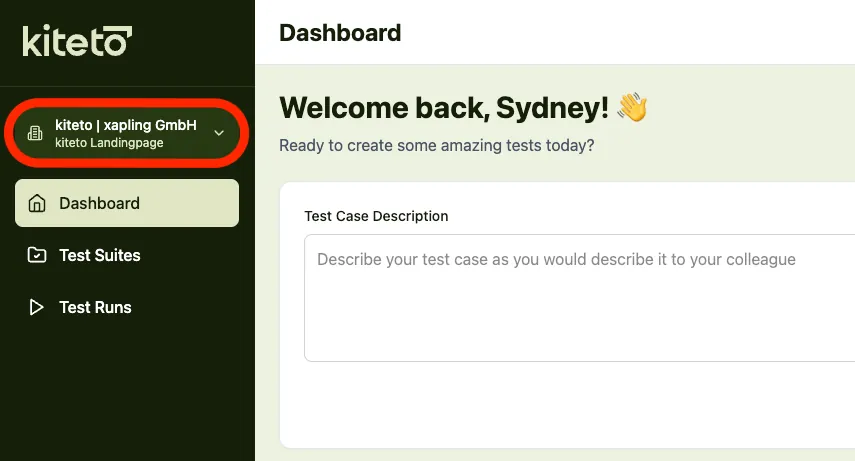
If your application hasn't been configured yet, contact our support team at support@kiteto.ai to get it set up.
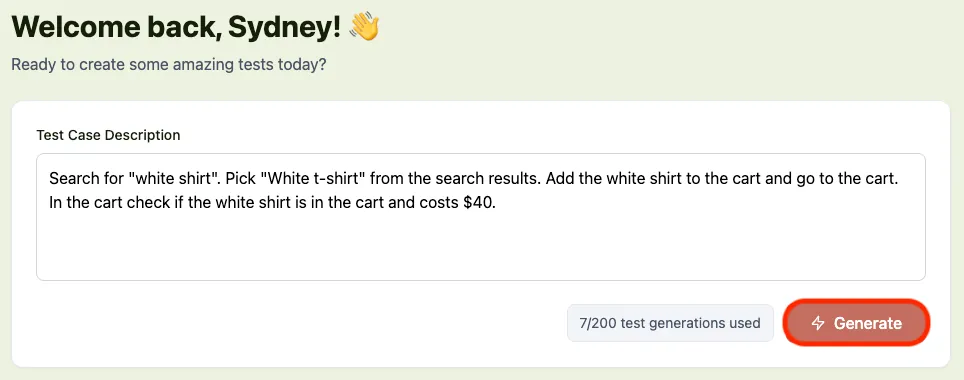
Step 2: Describe Your Test Case
In the "Test Case Description" field, write a clear description of what you want to test. Think of it as giving instructions to a skilled tester who has never seen your application before.
Example test case description:
Open the settings menu. Change the language to "Spanish". Save the changes and verify the interface language has changed to spanish.Tips for writing effective test descriptions:
- Be specific about the actions to perform (click, enter, select, verify)
- If possible include concrete values (e.g., "Spanish" instead of "a language")
- Describe the expected outcome clearly
- Break complex workflows into clear steps
Step 3: Generate Your Test
Click the "Generate Test" button and follow along in real-time as kiteto executes each step of your test scenario.
Step 4: Review the Generated Test
Once generation is complete, you'll see:
- Test steps - A detailed breakdown of each action performed
- Screenshots - Visual confirmation of what kiteto saw at each step
- AI reasoning - Insights into how kiteto interpreted your instructions
Review the generated steps to ensure they match your expectations. If something doesn't look right, you can regenerate the test.
Step 5: Copy Your Test Code
When you're satisfied with the generated test, click "Integrate Test" to view the complete Playwright test code. Click "Copy" to copy the code to your clipboard.
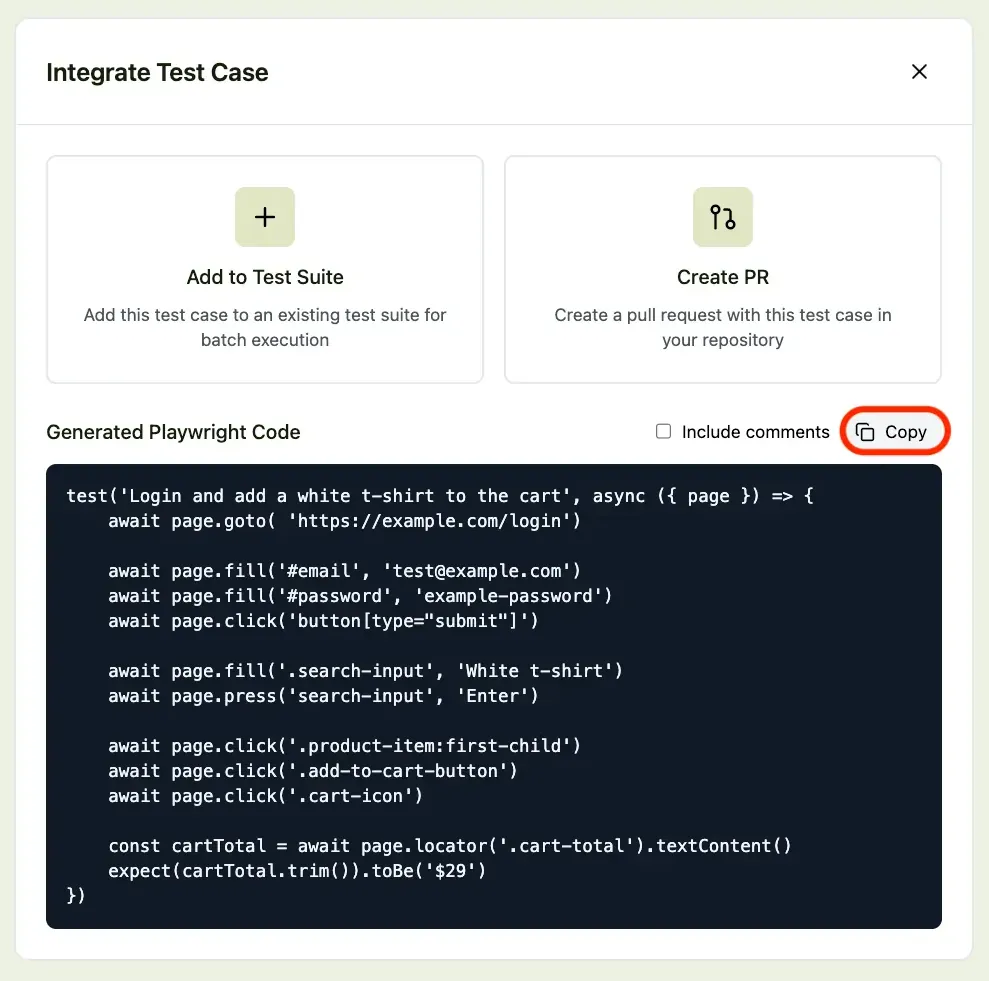
You can now paste this code into your existing Playwright test suite and run it.
Troubleshooting
Generation Failed or Produced Unexpected Results
If your test generation doesn't work as expected, try these approaches:
Make your description more detailed:
- Instead of: "Login to the application"
- Try: "Click the login button, enter username 'testuser@example.com' in the email field, enter password 'Test123!' in the password field, and click submit"
Break down complex scenarios:
- Instead of one long test, create multiple smaller tests
- Focus on one user journey at a time
Be explicit about UI elements:
- Mention specific button text, labels, or sections
- Example: "Click the 'Save' button in the top right corner"
Try regenerating:
- AI-based generation can produce different results each time
- Click "Generate New" to try again with the same description
Still Having Issues?
If you continue to experience problems:
- Check that your application is publicly accessible
- Ensure no authentication or CAPTCHA is blocking access
- Contact our support team at support@kiteto.ai for assistance